(TechStart: Microsoft Windows Azure Training Program )
This article explain you about installing and configuring your machine for Windows Azure development. I was preparing a help file for TechStart-windows Azure Program students so that they can prepare their PCs/Laptops for windows Azure development on their own, same article am sharing with you all. please note this document was written for students.
I will be publishing this in 3 separate posts, first for beginners where we will start from installing windows vista, VS, SP1, SQL Server , KB patches , Azure SDK etc. later on second post for Windows 7 with VS 2008 and third one for all OS and VS versions.
now lets start with first one - fresh installation on vista machine. I assume that you have a good configuration machine / laptop with at least 1 GB of RAM.
so lets make a list of all required software
- Windows Vista (Ultimate, Enterprise, business etc.).
- Windows Vista Service Pack 1 - Download here
- Visual Studio 2008 Professional Edition - Download Trial OR Microsoft Visual Web Developer 2008 Express with SP1
- Microsoft Visual Studio 2008 Service Pack 1 - Download here
- Microsoft SQL Server 2005 - Download Express edition here OR Download Trial Editions
- Hot fix patches for windows vista and visual studio (download from following links)
- Hotfix: Native Debugging Improvements
- Hotfix: Improve Visual Studio Stability
- Hotfix: Support for FastCGI on the Development Fabric
- Windows Azure Tools for Microsoft Visual Studio July 2009 CTP - Download here
that's all what you need to keep ready before you start preparing your machine.
so very Important thing is we are going to do a fresh installation of Windows Vista, either on your default C drive or on another drive of your hard disk. so before we start take a backup of your data on external device or another drive of your disk.
Installing Windows Vista
Now Put Windows vista DVD in your DVD ROM and reboot your machine from DVD. it will automatically start the Windows vista setup from DVD. Ref following screen. if you don't know about operating system installation then you can read more detail steps about how to Install windows vista at http://support.microsoft.com/kb/918884

follow the instructions in setup wizard carefully and complete the installation. It may take around 30 minutes (depend of your machine configuration) and on completion it will display login screen. ( Ref. following ) which means you can done with Vista installation.
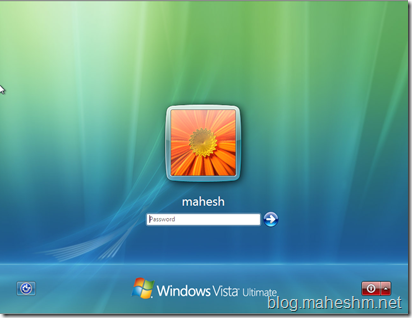
now provide the password and enter into the system.
after that Next step is install Windows Vista Service pack 1.
after installing Service Pack 1 it may ask you for reboot the system. reboot the system to complete the installation.
ones you are done with Service Pack installation then next step is
Enable IIS7 with ASP.NET and WCF HTTP Activation
start -> Control Panel -> Programs -> Click on Turn windows feature on or Off. it will show a security confirmation window , say Continue to that. it will open another windows just like this.

Under Microsoft .NET Framework 3.0, select Windows Communication Foundation HTTP Activation.
Under Internet Information Services, expand World Wide Web Services, then Application Development Features, then select ASP.NET and CGI.

then click ok to Install the selected features.
Next step is Installing Visual Studio 2008 and SQL Server
Put Visual Studio 2008 DVD (Professional edition Trial DVD) in DVD Rom and start the setup. follow the wizard to complete the setup.
(Note: as I am using Team System edition it shows Team system, following screens may differ depend on your Visual studio 2008 edition.)


it will complete installation of Visual Studio 2008 and SQL Server 2005 Express edition.
if you noticed in above screen that Microsoft SQL Server 2005 Express edition is selected by default, so Now you don't need to to install it separately on your machine, only if you are installing Visual Studio Web developer Express edition then only you need to install SQL Server Express edition separately.
ones you are done with Visual Studio 2008 Professional edition Trial or Visual studio visual web developer express edition then start installing Service Pack 1 for Visual Studio 2008.

many times this take more than 30 minutes, so sit back and have some snacks :)
after installation of SP1 for VS2008, time to install some important Hot fix for Vista and VS2008
Install the Hotfix: Native Debugging Improvements (KB967631 - update for VS2008 SP1 debugger)
Install the Hotfix: Support for FastCGI on the Development Fabric (KB967131 - Update for Windows Vista)
Install the Hotfix: Improve Visual Studio Stability (KB963676)


after installing Hotfix for windows vista it will ask you for reboot, reboot the system.
Now system is Ready to install Azure SDK and its tools for VS. since we downloaded Windows Azure Tools for Microsoft Visual Studio July 2009 CTP, we DO NOT NEED to download and install Azure SDK July CTP separately. SDK is part of same installer.
installing Windows Azure Tools for Microsoft Visual Studio July 2009 CTP

ones setup complete open Visual studio 2008 from start menu, go to new project and check if Cloud service template is available or not, if its available then you are done with your installation and ready for Azure development. now how to write hello word program that we are going to see in our first lecture. till that you can go through http://www.azure.com and read about azure development.

![Header[2]](https://blogger.googleusercontent.com/img/b/R29vZ2xl/AVvXsEj1DZoIXtqnQemIhj-EDAxnfggmIPr1l6bN8iodhLH3AVUgO1oUNVzrJWipz27HXOjTIZ8Q4yTf5b1VNZ65oQjFgkM5yAmIFgsUVCKdhtlDMfTY8ufO_TgHKODqFHqsrcWFU4bV/s1600-h/Header%5B2%5D%5B4%5D.jpg "Header[2]")


